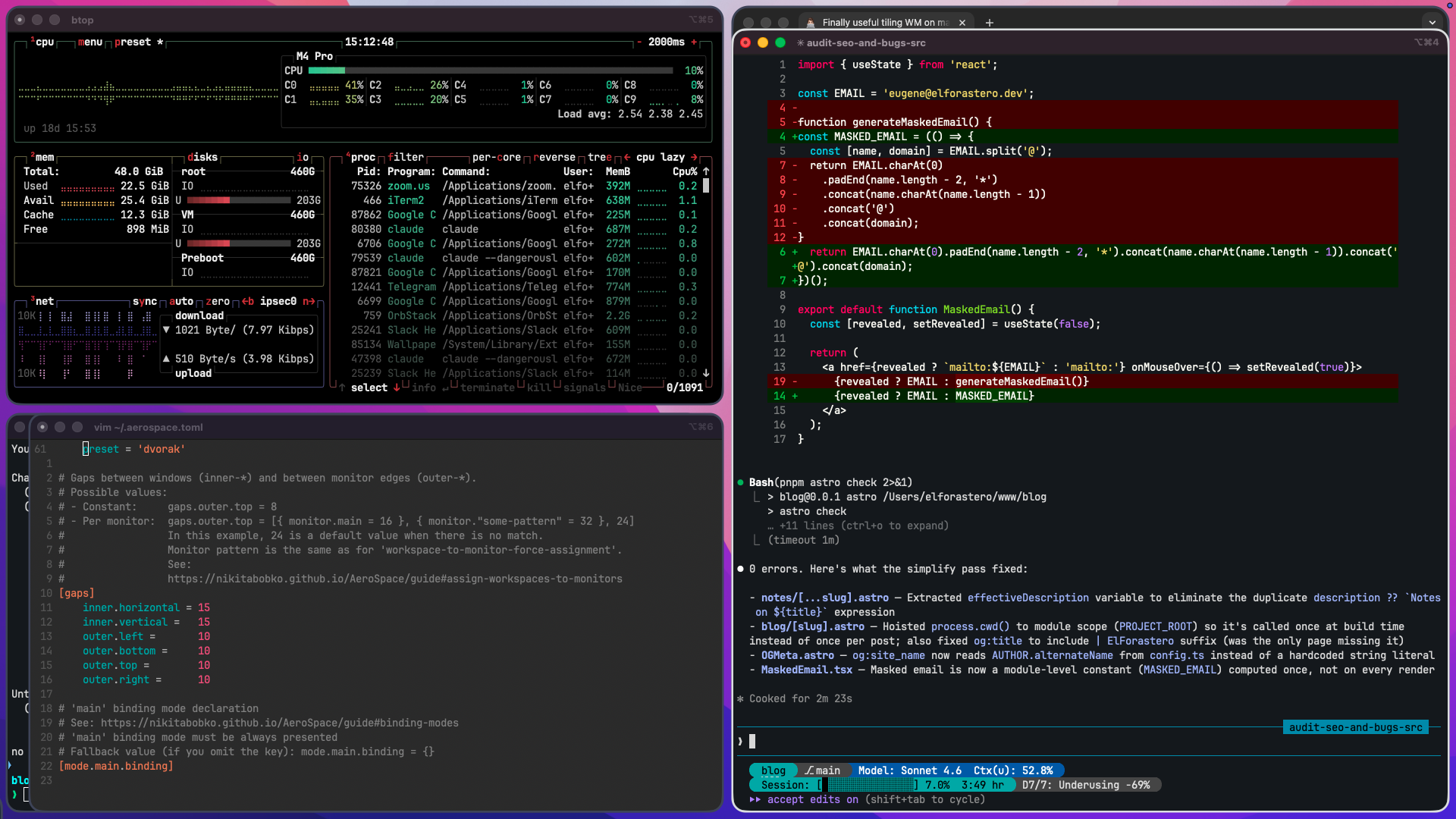
Although I like macOS for its simplicity and out-of-the-box readiness for both professional and private usage, there was always one thing that I disliked a lot - windows and workspaces management (as a whole).
I clearly remember my experience with Ubuntu in 2010s with Unity and CompizConfig later where workspaces management feature was one of those that held me from looking at other systems for some time. Later was KDE and Kubuntu and one day I switched to Arch Linux. That day I learned about AwesomeWM and started playing with tiling window manager concepts (I'll shorten it to TWM further).
Why?
With 2 monitors and 15+ windows open, window management quickly becomes an annoying routine: Find a window → Switch to it → Switch back with CMD + Tab → Move cursor to another monitor → Repeat, as many times as your workflow requires.
For instance, my typical routine as an Engineering Manager:
- Switch to Claude Code/Cursor, check something
- Switch to Figma, then back to Claude
- Switch to Chrome, check what's happening
- Switch to Slack to answer/ask teammate a question
- Switch to another terminal window
- Switch to TablePlus to remember what Postgres fields were added lately
- Switch to Chrome to check ArgoCD for successfully run migrations
- …
So many repetitive actions and I've tried to optimize it in different ways starting from using Alfred with Spectacle and later with Rectangle as attempt to minimize touchpad usage and speedup context switching. Combining Rectangle with macOS native workspaces worked for me during the last few years but still, I remember how nice it was using AwesomeWM on Arch.
Long story short - there are several TWMs for macOS, that imitate i3-like behavior and bypass Apple's built in windows placement logic:
AeroSpace
AeroSpace in my opinion is the most stable and battle-tested, so during my last vacationing when I finally had several spare days I made a decision to migrate from Rectangle. And I regret. I regret that I haven't done this before. AeroSpace is simple AF in usage and configuring but very robust and does exactly what it's asked to - manages windows like i3.
- New windows open in grid
- Windows get automatically resized/equalized
- Windows are organized in Workspaces
- Windows may be organized into stacks (horizontal or vertical)
- Workspaces/Windows are easily switchable using only keyboard
- Windows can be moved using keyboard
- Workspaces can be moved between monitors using keyboard
Configuring macOS
As per AeroSpace Goodies docs it's better to apply some macOS defaults. At the moment I have the following list of customizations for AeroSpace setup in my dotfiles.
# Move windows by dragging any part of the window
defaults write -g NSWindowShouldDragOnGesture -bool true

# Disable windows opening animation
defaults write -g NSAutomaticWindowAnimationsEnabled -bool false

# Disable Displays have separate Spaces
defaults write com.apple.spaces spans-displays -bool trueSetting up AeroSpace
After installation it's required to place a default ~/.aerospace.yml config and update it to fit ones needs. In the docs there are 2 versions of default config - i3-like and suggested by AeroSpace. I went with the second one to stick with the author's idea. Spoiler - you'll anyway reconfigure a lot for yourself, so just use a default one if you are not sure which one to go with.
Note that I use dhtn instead of hjkl across configs because I use Dvorak layout for typing.
Some basic configuration options:
# Start AeroSpace at login
start-at-login = true

# Gaps between windows (inner-*) and between monitor edges (outer-*).
[gaps]
    inner.horizontal = 15
    inner.vertical =   15
    outer.left =       10
    outer.bottom =     10
    outer.top =        10
    outer.right =      10

# 'main' binding mode declaration
[mode.main.binding]
    # See: https://nikitabobko.github.io/AeroSpace/commands#layout
    alt-slash = 'layout tiles horizontal vertical'
    alt-comma = 'layout accordion horizontal vertical'

    # See: https://nikitabobko.github.io/AeroSpace/commands#focus
    alt-d = 'focus left'
    alt-h = 'focus down'
    alt-t = 'focus up'
    alt-n = 'focus right'
Default config is very descriptive and paired with the official docs it's not a problem to understand purpose of commands and directives.
Highlighting active window
It's super convenient to have an indication of currently active window, and by default there's no such option neither in AeroSpace nor in macOS. But fortunately we have JankyBorders - the app may be used without tiling window managers, but it shines with AeroSpace.
After installing, add the following to your ~/.aerospace.yml :
# You can use it to add commands that run after AeroSpace startup.
# Available commands : https://nikitabobko.github.io/AeroSpace/commands
after-startup-command = [
    # JankyBorders has a built-in detection of already running process,
    # so it won't be run twice on AeroSpace restart
    'exec-and-forget borders active_color=0xffe1e3e4 inactive_color=0xff494d64 width=5.0'
]
Congrats, now you have a subtle white border around an active window.
Overriding default behavior
AeroSpace provides a list-apps command to get bundle identifiers of the currently open apps. It's the most reliable way to target specific apps on open.
❯ aerospace list-apps
82339 | com.apple.mail                                  | Mail
28162 | com.anthropic.claudefordesktop                  | Claude
466   | com.googlecode.iterm2                           | iTerm2
62230 | com.apple.iCal                                  | Calendar
66819 | com.tinyapp.TablePlus                           | TablePlus
96880 | com.todesktop.230313mzl4w4u92                   | Cursor
75326 | us.zoom.xos                                     | zoom.us
25235 | com.tinyspeck.slackmacgap                       | Slack
56700 | com.figma.Desktop                               | Figma
6699  | com.google.Chrome                               | Google Chrome
...
Once we know the exact app ID we can control it using .aerospace.yml directives:
# To make app windows floating by default
[[on-window-detected]]
    if.app-id = 'us.zoom.xos'
    run = 'layout floating'

# To move app to a specific workspace automatically
[[on-window-detected]]
    if.app-id = 'ru.keepcoder.Telegram'
    run = 'move-node-to-workspace C'
See more callbacks definitions in the docs.
Hyper key
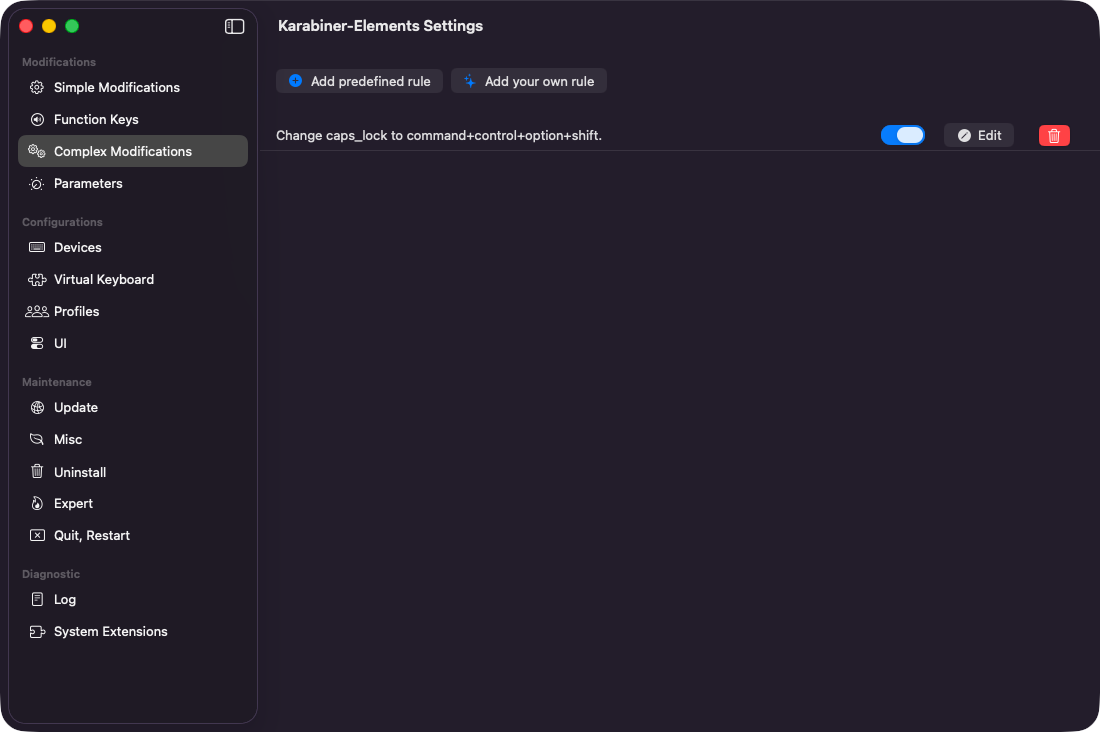
If you want to use Caps Lock as hyper key you have several options, but the most straightforward and common is to use Karabiner Elements.
Go to Complex Modifications → Add predefined rule and enable Change caps_lock to command+control+option+shift
Update your ~/.aerospace.yml config:
[mode.main.binding]
    ctrl-alt-cmd-shift-d = 'focus left'
    ctrl-alt-cmd-shift-h = 'focus down'
    ctrl-alt-cmd-shift-t = 'focus up'
    ctrl-alt-cmd-shift-n = 'focus right'
From now on you can use caps_lock + dhtn to move around. Continue iterating with other binding until you will be satisfied 😌
Alternatively take a look at Hyperkey app - it does only one thing and does it cool. Karabiner is a whole toolchain, but I have to use it because of a Programmer Dvorak Layout and my own preferences, but that's a story for another time.
My Setup
Here's the full stack I ended up with:
- AeroSpace — tiling window manager
- JankyBorders — active window highlight
- Karabiner Elements — Caps Lock → Hyper key (also needed for Programmer Dvorak)
- macOS defaults tweaks from the AeroSpace Goodies docs
What else?
Some prefer to replace the native macOS status bar with a custom one like SketchyBar, but so far I don't see any useful scenarios for it. AeroSpace has a recipe for it.
By the way, Windows has some tiling WMs as well.
The only issue I'm still fighting with is switching language sources using the same caps_lock / hyper key. There's a setting in macOS keyboard preferences that allows switching back and forth between last used layouts, but it conflicts with Karabiner. I've tried updating Karabiner configs with delays and separate bindings for standalone caps_lock presses — no luck yet. Still get a lot of false-negative layout switches when typing fast.
That said, it's a minor annoyance compared to how convenient navigation and windows management became. I still haven't get fully used to the keybindings and change them to fit my needs. But even though not all issues are solved in a way I expect them to be solved, I don't think much about windows placement now - it just happens most of the time. If you have been on the fence about trying TWMs or you already use Rectangle or Spectacle, I'd say that just do it over a weekend and see how it feels. ✌️